Channels Page
The Channels page serves as a central hub where you can manage all sales, plugins and accounting channels integrated with the stores linked to your account. This page provides a comprehensive view of your multi-channel operations, allowing for efficient organisation and streamlined management.
Last updated 10 months ago

Accessing the Channels Page on Neuro
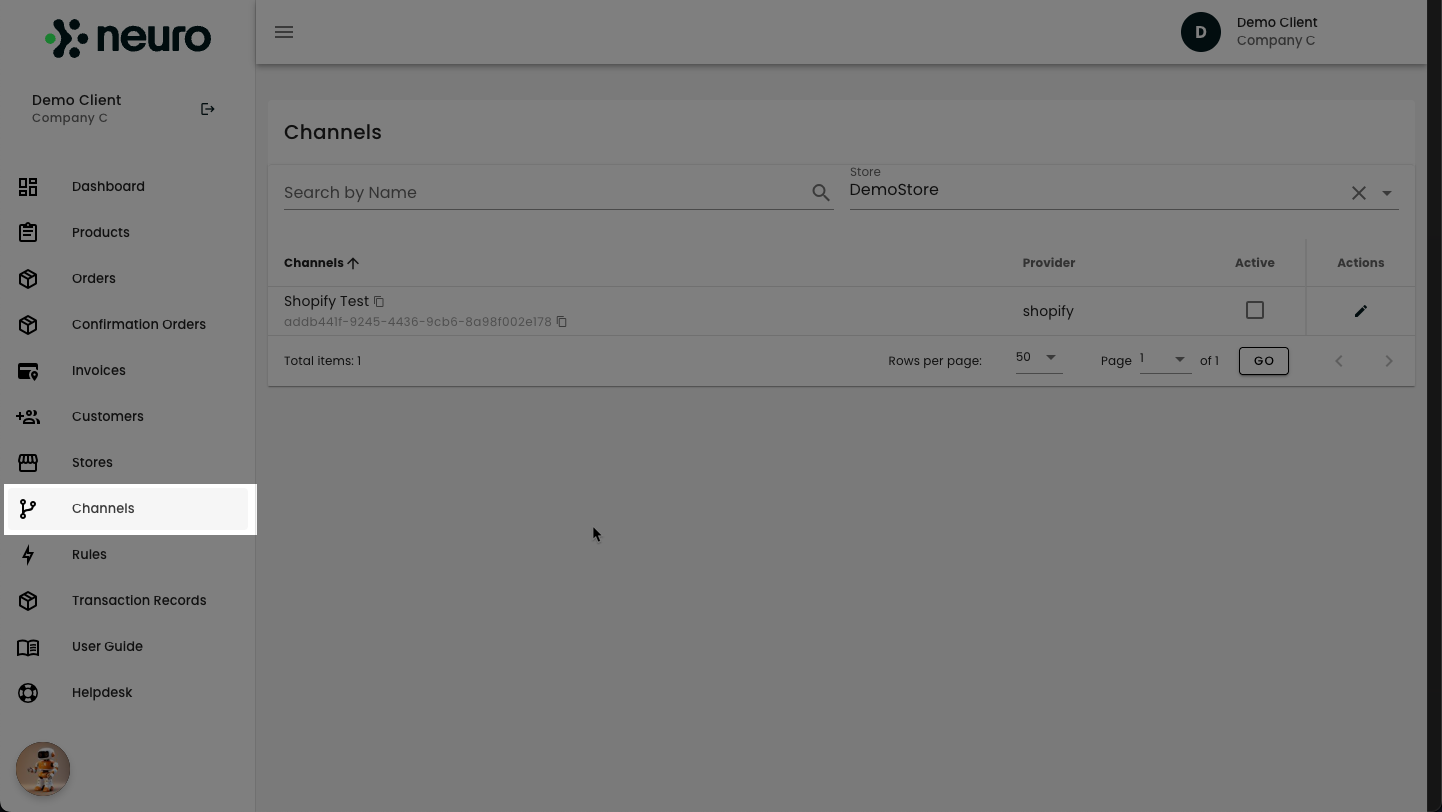
To navigate to the Channels page:
Locate the left-hand menu.
Click on "Channels".
Click to Maximise the Image.

Exploring the Channels Page
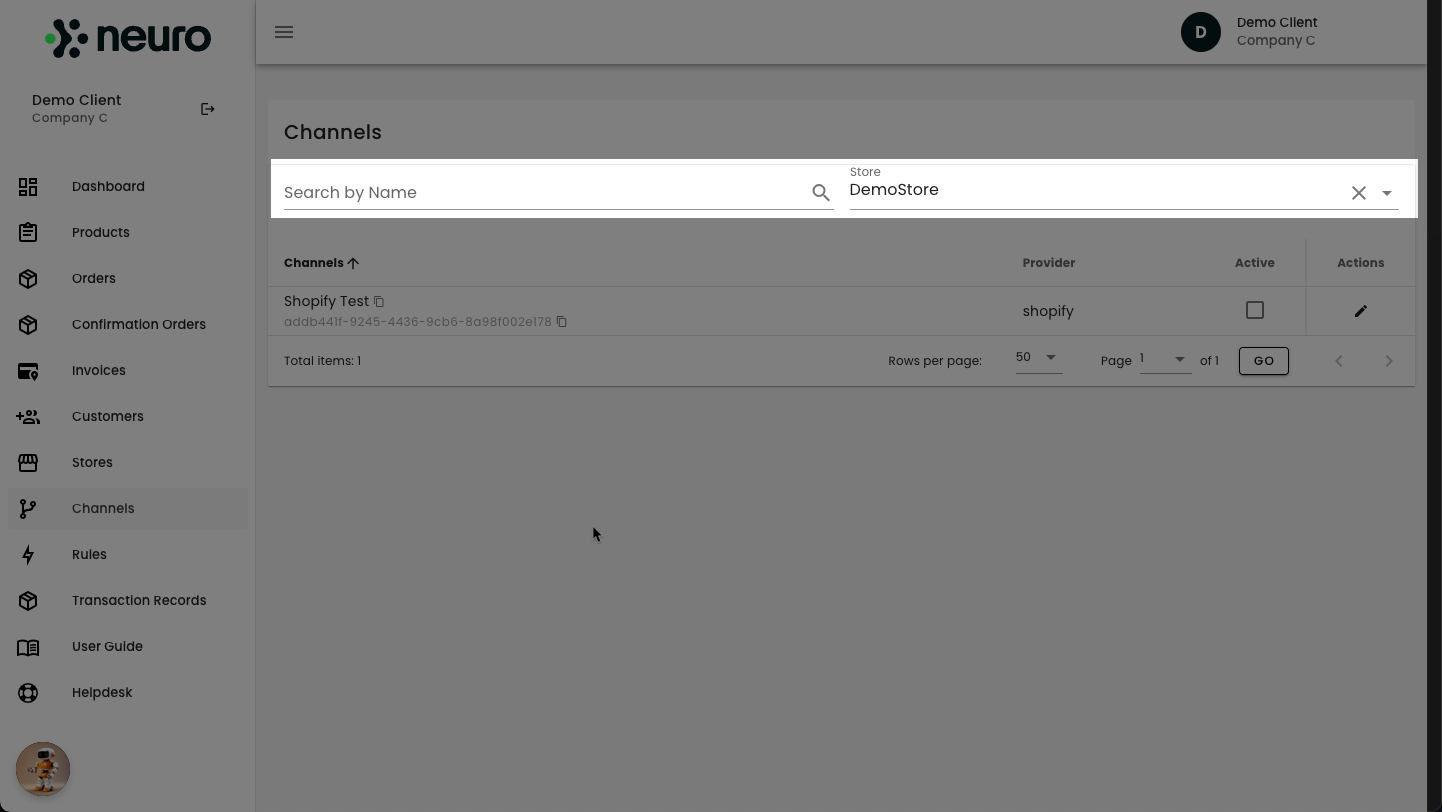
Upon accessing the Channels page, you will see a list of all sales and accounting channels connected to your account. To refine the view, you can:
Use the search bar to find a specific channel quickly.
Filter by store to display only the channels associated with a particular store.
Click to Maximise the Image.

Managing Channels
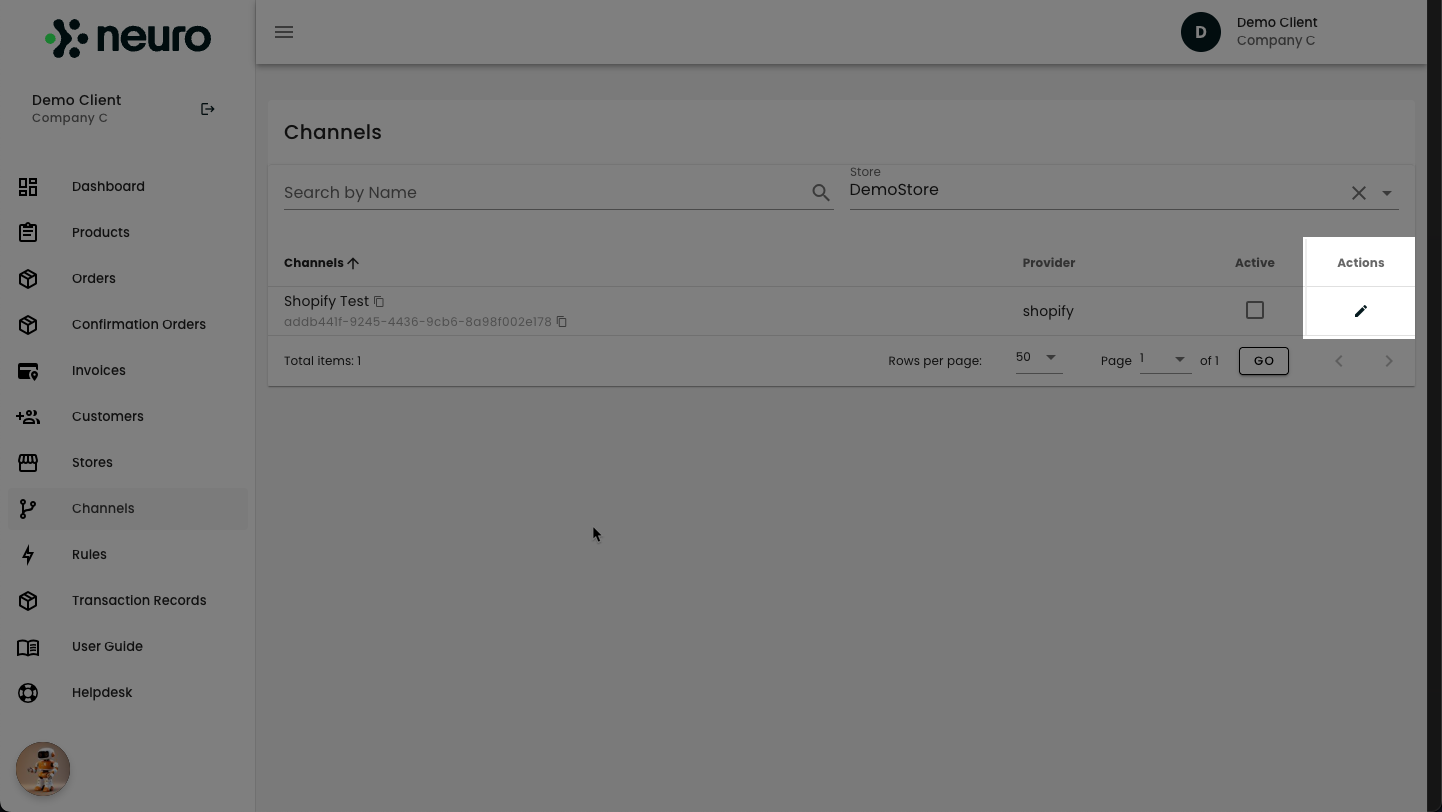
Editing a Channel
Locate the desired channel.
Click the pencil (edit) icon next to the channel.
Modify the necessary details as required.
For specific guidance on editing individual channels, refer to the respective channel documentation.
Click to Maximise the Image.

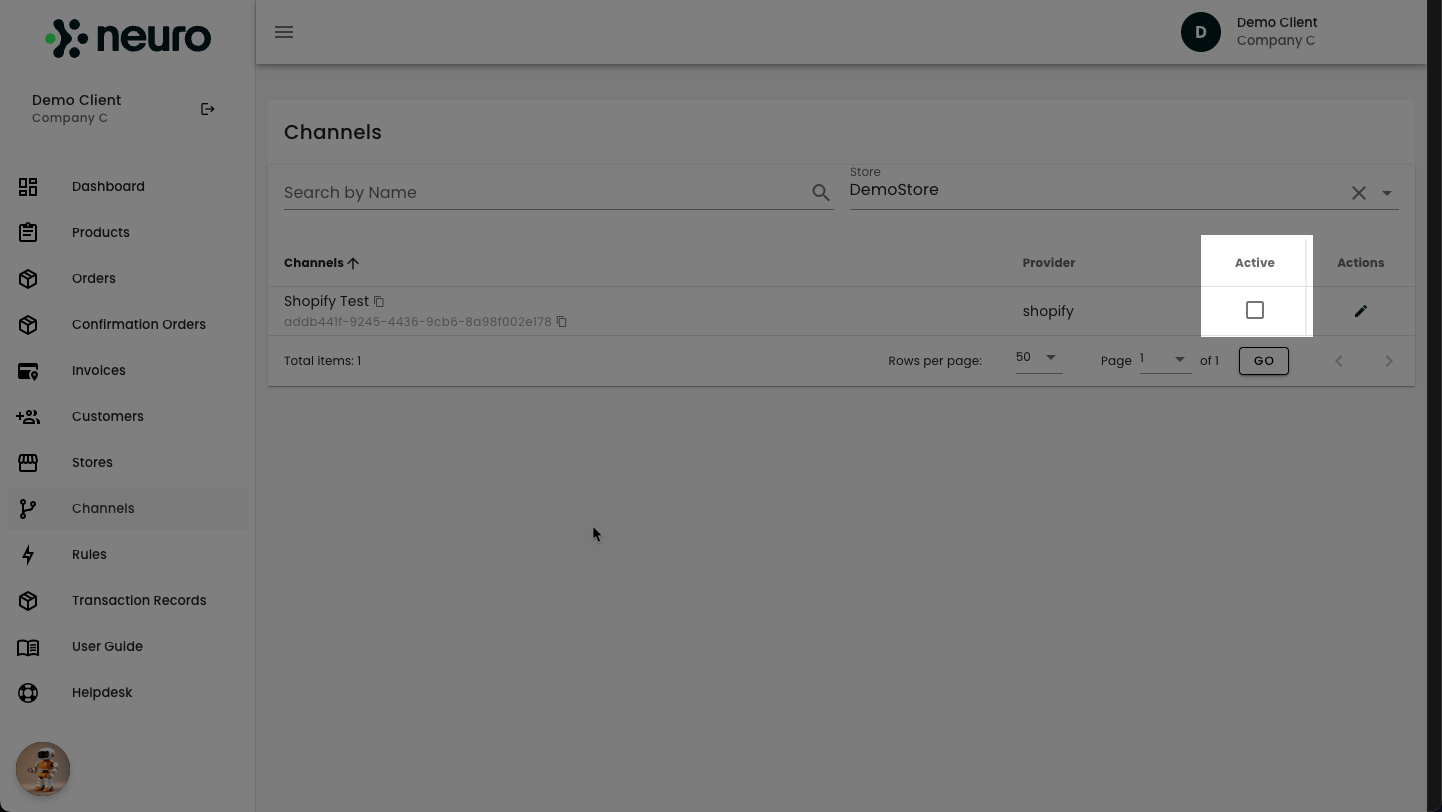
Enabling or Disabling a Channel
Each channel entry includes an "Active" checkbox.
Tick the checkbox to enable a channel or untick it to disable it.
Click to Maximise the Image.
This streamlined approach ensures seamless management of channels, enhancing operational efficiency within your Neuro platform.

Next Steps & Support
Need help? Explore more of our documentation, or contact support.