Managing Users in Neuro
This guide provides step-by-step instructions for navigating the Users page, inviting new users, and managing existing ones efficiently.
Last updated 10 months ago

Accessing the Users Page
To access the Users page:
Click on your username in the upper-right corner of the interface.
From the dropdown menu, select "Users".
Click to Maximise or Pause/Play the Video.

Inviting a New User
To invite a new user to the platform, follow these steps:
Initiate the Invitation Process:
Click the "Invite" button located in the top-right corner of the Users page.
You will be redirected to the invitation page.
Enter User Details:
Input the email address of the user you wish to invite.
Select a role for the user from the dropdown menu next to the email field.
Roles define the permissions assigned to the user. Visit our Roles Guide for more details.
Send the Invitation:
Click "Save" to confirm the invitation.
You will be redirected back to the Users page, where the newly invited user will appear under the "Invitations" section.
Manage Pending Invitations:
Next to the invitation entry, you will find two action buttons:
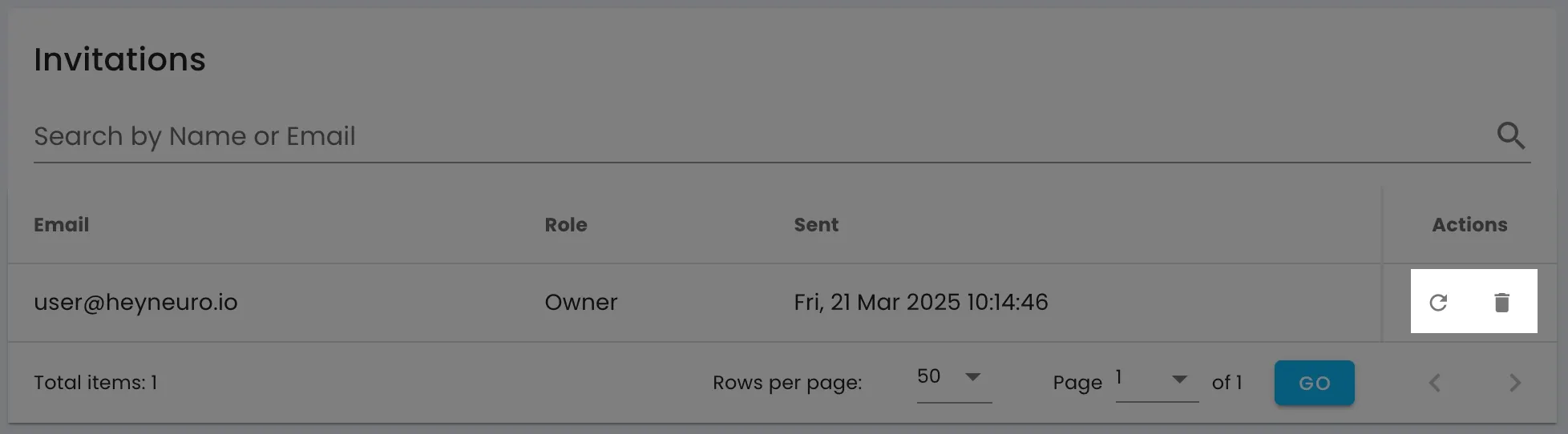
Resend Invitation: Click this button to resend the invitation email if needed.
Delete Invitation: Click the trash bin icon to revoke the invitation and prevent the user from joining.
User Accepts the Invitation:
The invited user will receive an email containing an "Accept Invitation" button.
Clicking this button redirects them to the platform, where they must set their name and password.
The email field will be pre-filled with their invitation email.
Click to Maximise or Pause/Play the Video.

Editing an Existing User
To modify an existing user’s details:
Locate the User:
Navigate to the Users page.
Find the user you want to edit.
Access the Edit Page:
Click the pen icon under the "Actions" column next to the user's entry.
Update User Information:
Modify the user's name, email, or role as needed.
Click "Save" to apply the changes.
Review User Activity:
The "Activities" section provides a summary of the user's actions on the platform.
Click "All Activities" for a detailed log.
Monitor Authentication Records:
The "Authentication Transaction Records" section displays login attempts, including timestamps and IP addresses.
View Page Visits:
The "Page Views" section lists the pages visited by the user, along with timestamps.
By following these steps, you can efficiently manage user access, monitor activity, and maintain security within the platform.
Click to Maximise the Image.