Shopware Integration
Shopware Setup Guide, this page provides step-by-step guidance on obtaining credentials, which are essential for the setup process.
Last updated 8 months ago

What is Shopware
Shopware is a leading e-commerce platform that provides businesses with the tools and features they need to create and manage their online stores. It is a fully customisable and scalable solution designed to meet the needs of businesses of all sizes, from small startups to large enterprises. Shopware offers many features, including a robust product management system, customisable themes and templates, payment and shipping integration, and various marketing tools. It also includes features such as a responsive design, multi-language support, and SEO optimisation to ensure businesses can provide customers with a seamless shopping experience across all devices and channels. Shopware's user-friendly interface and flexibility make it easy for companies to adapt the platform to their needs and workflows. Overall, Shopware is a comprehensive and powerful e-commerce platform that provides businesses with the tools and features they need to succeed in the competitive online marketplace.

Obtaining your API Keys from Shopware
In the Shopware settings, you can create custom API access for your applications. To do so, navigate "Settings > System > Integrations" and click "Create integration." In the next window, you can name your integration and set its permissions, either as an administrator or as another role such as "read" and "write" if you have already defined those roles. Please toggle on the "Administrator" option, as it will provide us with access permissions.
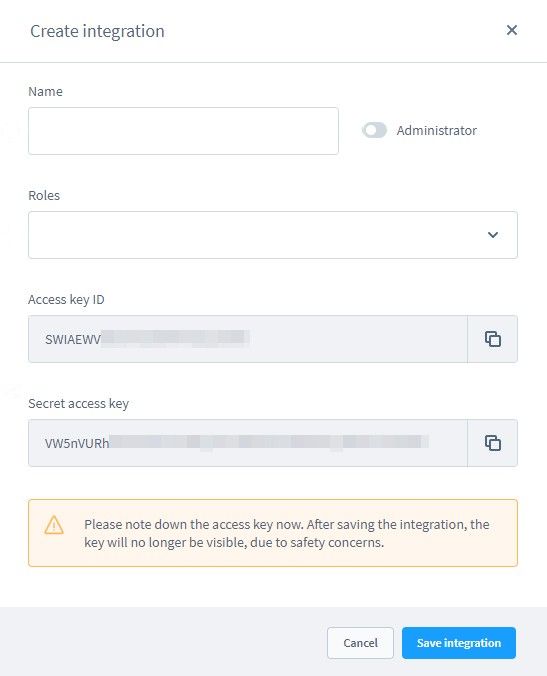
Click to Maximise the Image.
After successfully saving your integration, you will receive both an access ID and security key, which will be used during the sales channel installation process. To ensure that you have easy access to these API keys, it is important to make note of them, as the security key will only be displayed once and cannot be retrieved later. To ensure the security of your keys, it is recommended to store them in a secure and easily accessible location.

Installing the Shopware Sales Channel
To add the Shopware sales channel to your Neuro account, kindly adhere to the following steps:
Access your account and go to the left side of the screen. Click the "Stores" button.
If you already have a store, click "View Store" on the right side of the screen to access it.
To edit an existing store, click the edit button on the right side. If you need to create a new store, click "+ ADD" above, name it, and use the edit button to make changes.
Click "+ ADD" in the channels section to begin the installation.
A window will appear in the centre of the screen. Choose "Shopware" from the list of available channels.
Provide the required information:
Channel Name: In the field provided, you can enter any name. However, it is recommended that you choose a name that has meaning to you, such as "Shopware," as it will serve as an apparent reference for the source of the order in the future.
Service URL: This is where you should enter the URL of your store, as it will appear in the navigation bar. Such as "https://hostname.shopware.com/".
Username and API Key: Please enter the information obtained from the Shopware platform, as previously shown. Ensuring that these fields are filled in correctly to access your account is essential.
After filling out the fields, customise other options, then click "Save" in the bottom-right corner.
You'll be back in the recently installed channel. Activate it at the top of the screen using the "Is Active" button.
Congratulations! You've successfully set up your Shopware sales channel on Neuro.
You can now sell products on Shopware and manage orders from your Neuro dashboard.
Click to Maximise the Video.
For additional support, contact the Neuro Support Team.