Resend Orders to Webhooks or Plugins via Bulk Update
This guide outlines how to use Neuro’s Bulk Update feature to manually resend orders or fulfilments to webhooks or plugins. This functionality is essential for resolving synchronisation failures, managing updates across systems, and ensuring your fulfilment processes remain consistent and reliable. Whether using remote IDs or file uploads, this walkthrough enables you to manage order flows efficiently without duplication.
Last updated 10 months ago

Step 1: Navigate to Bulk Update Tools
Log in to your Neuro account.
From the left-hand menu, click Orders.
Select the relevant store from the dropdown.
Click the Actions button (top right).
Choose Bulk Update Sync Status from the dropdown list.
Click the video to maximise or control.

Step 2: Select the Desired Action Type
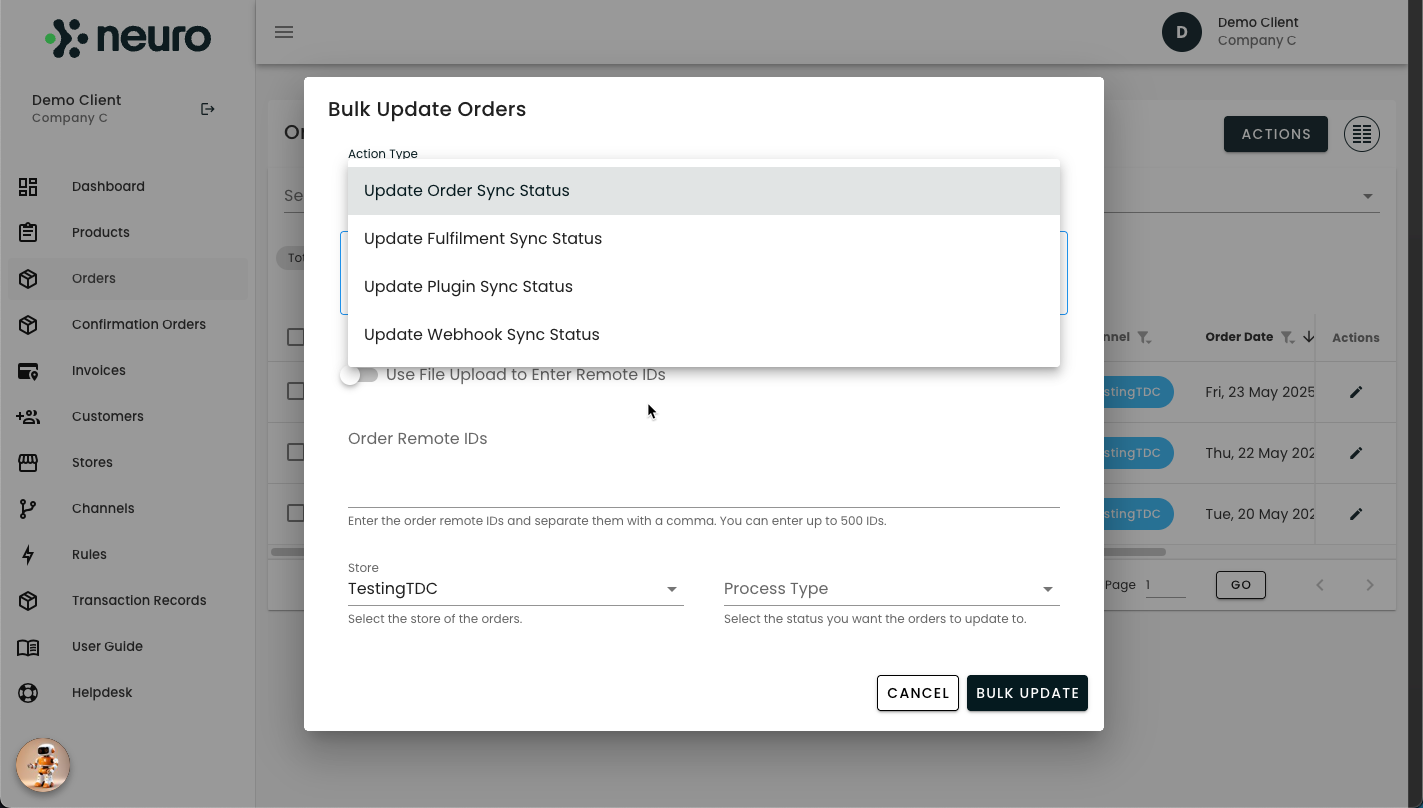
You will be prompted to choose one of the following Action Types depending on your needs:
Update Order Sync Status
Resend orders via webhook or mark them with a different sync status.Update Fulfilment Sync Status
Resend fulfilment information to the sales channel if the initial attempt failed.Update Plugin Sync Status
Resend orders or fulfilments to a connected plugin integration, or mark them as excluded to prevent duplicates.Update Webhook Sync Status
Resend orders or fulfilments to a configured webhook endpoint, or adjust their status to manage integration behaviour and prevent repeated transmissions.
Click the video to maximise or control.
Step 3: Provide Remote IDs
You may submit orders using Remote IDs, either manually or via file upload:
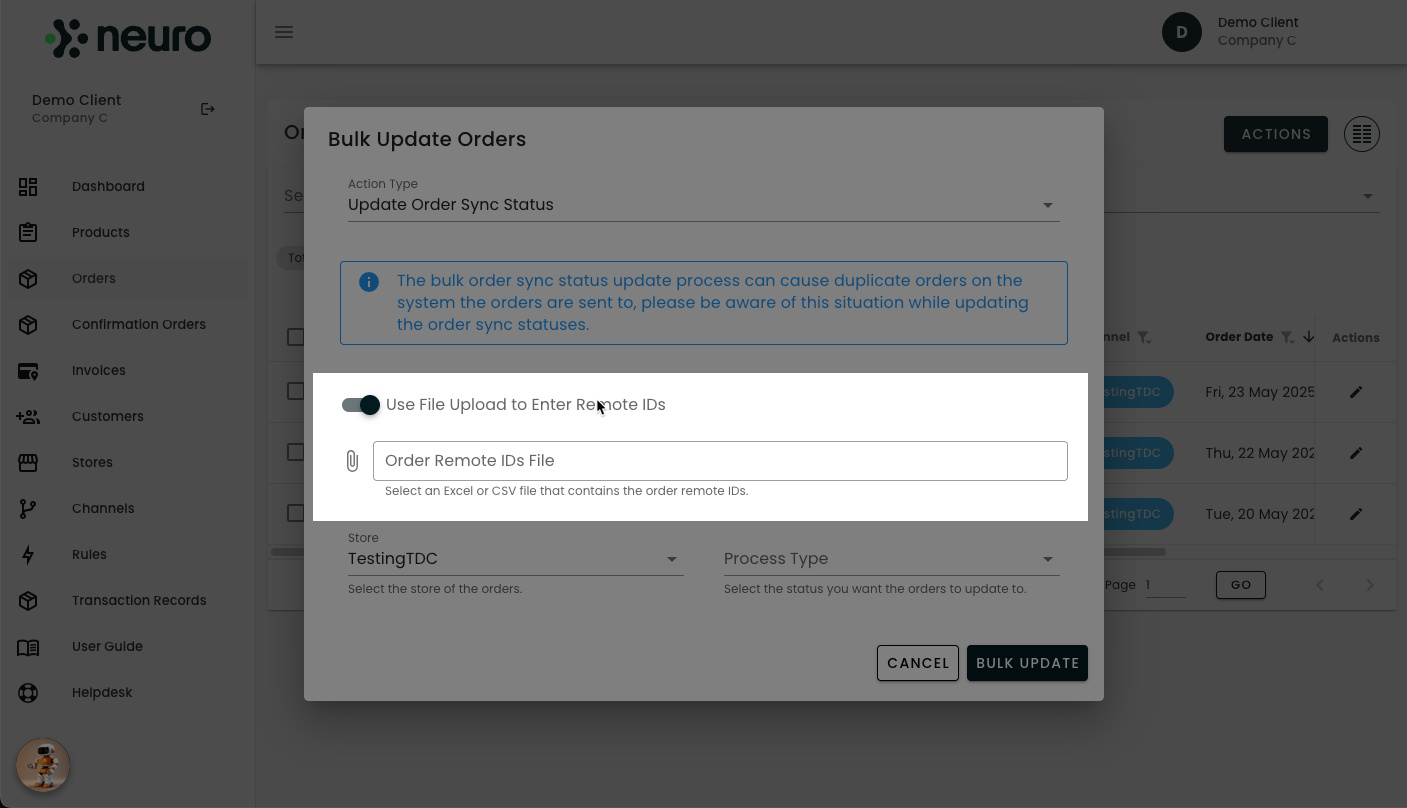
Option A – Upload a File:
Tick Use File Upload to Enter Remote IDs.
Click Order Remote IDs File to upload an
.xlsxor.csvfile containing the relevant IDs.
Click the video to maximise or control.
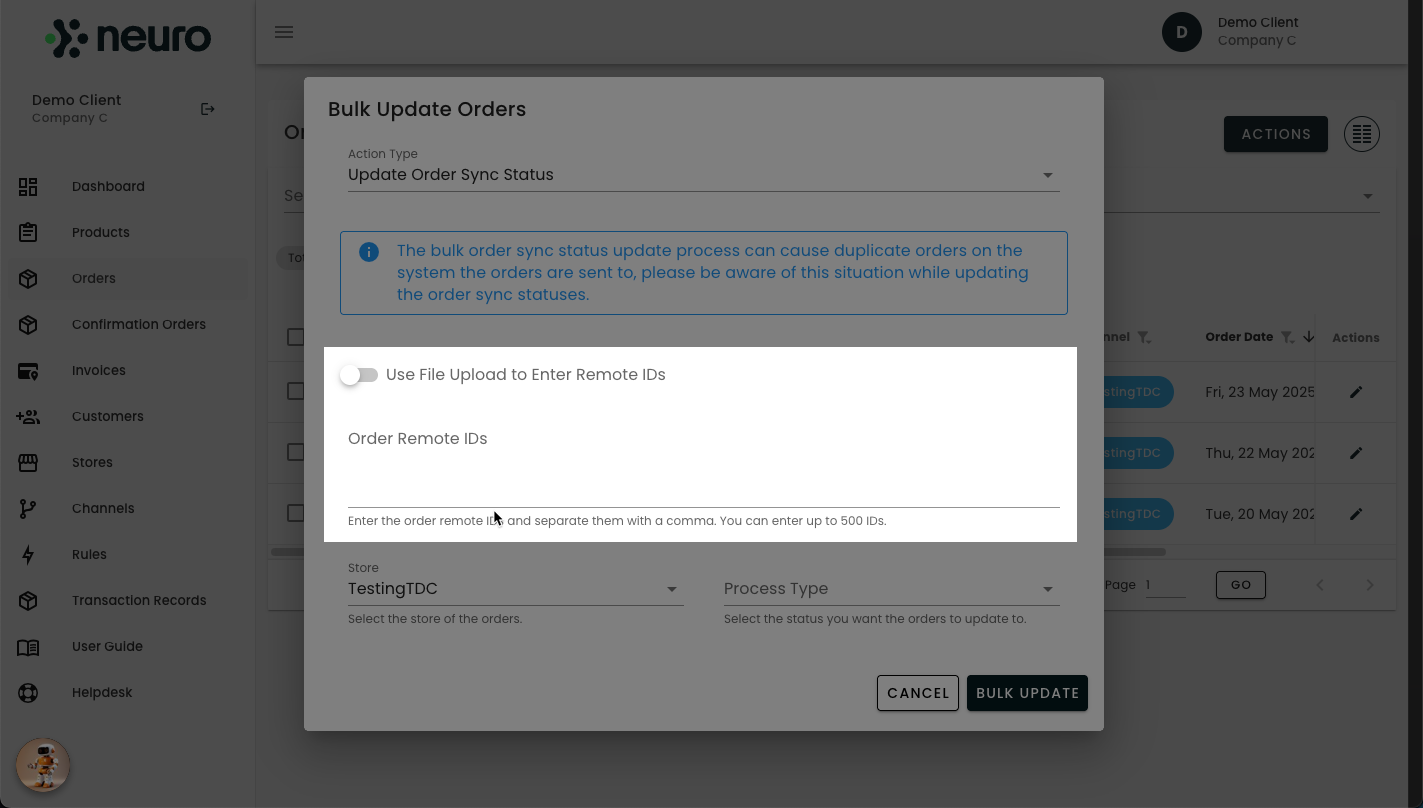
Option B – Manual Entry:
Paste up to 500 remote IDs into the Remote IDs field, separated by commas.
✅ Tip: Ensure the correct store is selected in the Store field before proceeding.
Click the video to maximise or control.
Step 4: Choose the Process Type
Depending on your goal, select the appropriate Process Type from the dropdown:
Click the video to maximise or control.
Step 5: Submit Bulk Update
After all fields are correctly configured, click Bulk Update.
You will receive a confirmation email once the update process is complete.
Click the video to maximise or control.
Special Case: Resending to a Plugin
If resending an order to a plugin, perform two consecutive bulk actions:
Mark Order Sync Status as
Excluded
(Prevents the webhook from reprocessing the order)Mark Plugin Sync Status as
Excluded
(Prepares the plugin to receive the order again without duplication)
This ensures the order is properly resent without triggering multiple fulfilments.
By following these streamlined steps, you can leverage Neuro's powerful integrations to automate your business operations and enhance your efficiency across multiple sales channels and platforms.
Need Assistance?
If you require further help:
Browse more of our documentation.
Or Contact Neuro Support and create a ticket.