Plugin Features in Neuro
This document outlines the functionalities available after installing a plugin within Neuro. Not all features may be applicable to every plugin. You will learn how to configure plugin rules, manage order statuses, and utilise webhook integrations for efficient processing. Plugin rules enable automated order processing based on specified conditions, enhancing efficiency and control over order handling.
Last updated 10 months ago

Creating a Plugin Rule in Neuro
To create a plugin rule, follow these steps:
Navigate to the store where the plugin is installed.
Locate the plugin and click the Edit button on the right-hand side.
Scroll down to the Rules section and click Add Rule.
Enter the required details and click Save.
Activate the rule by ticking the Is Active checkbox.
Click to maximise the video.

Example Plugin Rules
Excluding Single Item Orders by SKU
To exclude orders with a single item based on SKUs:
Rule Name: Provide a descriptive name.
Condition:
Line Item SKUOperator:
ExistsCondition Value: List SKUs, including Kit, Bundle, and Group SKUs, separated by commas.
Action:
Update Order Sync StatusAction Value:
Excluded
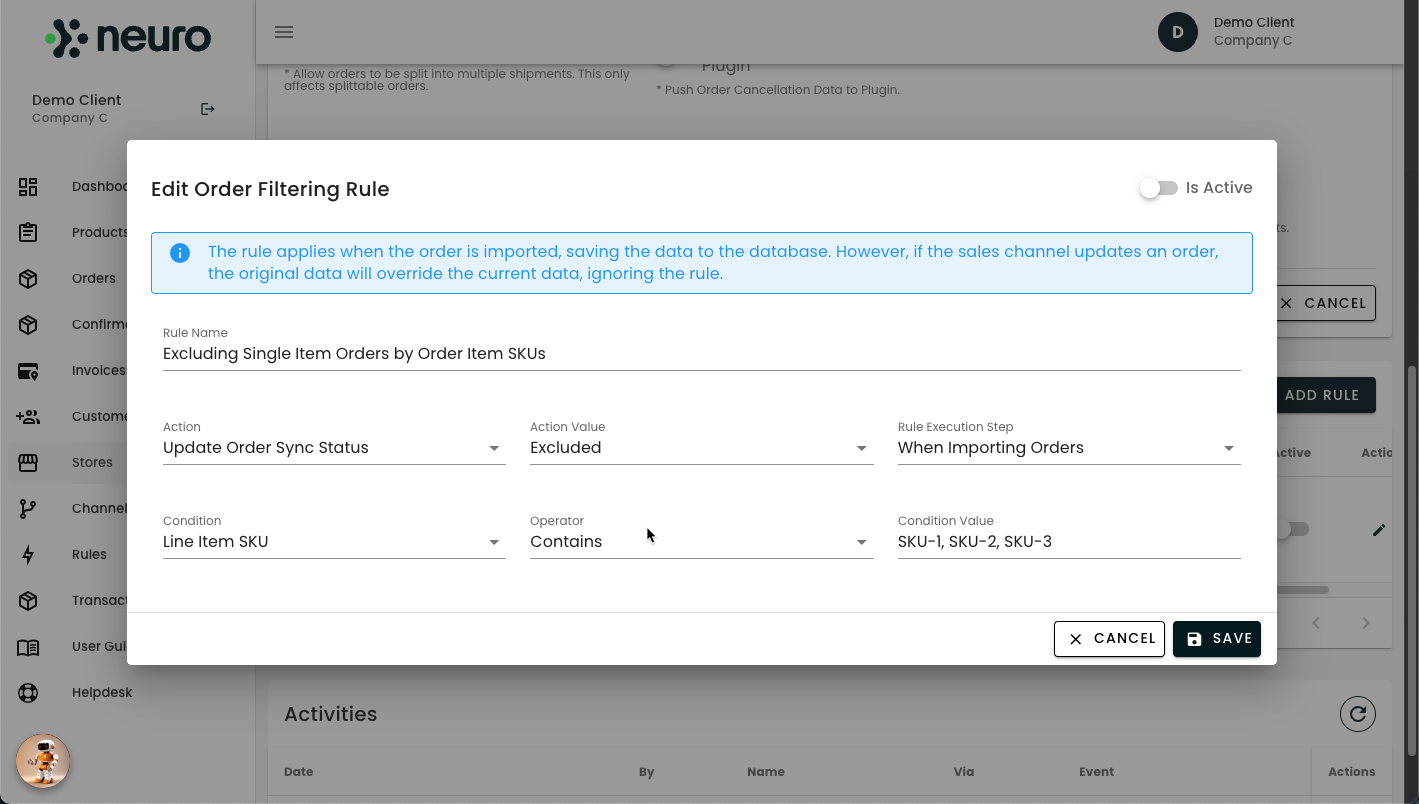
Click to maximise the image.

Excluding Orders by Total Item Quantities
To exclude orders based on total item quantity:
Rule Name: Provide a clear description of the rule’s purpose.
Condition: Total Order Item Quantity
Operator: Choose an operator (e.g., "Greater than" to exclude orders exceeding a specific quantity).
Condition Value: Input the total quantity threshold (e.g., 10 to exclude orders with more than 10 items).
Action: Update Order Sync Status
Action Value: Excluded
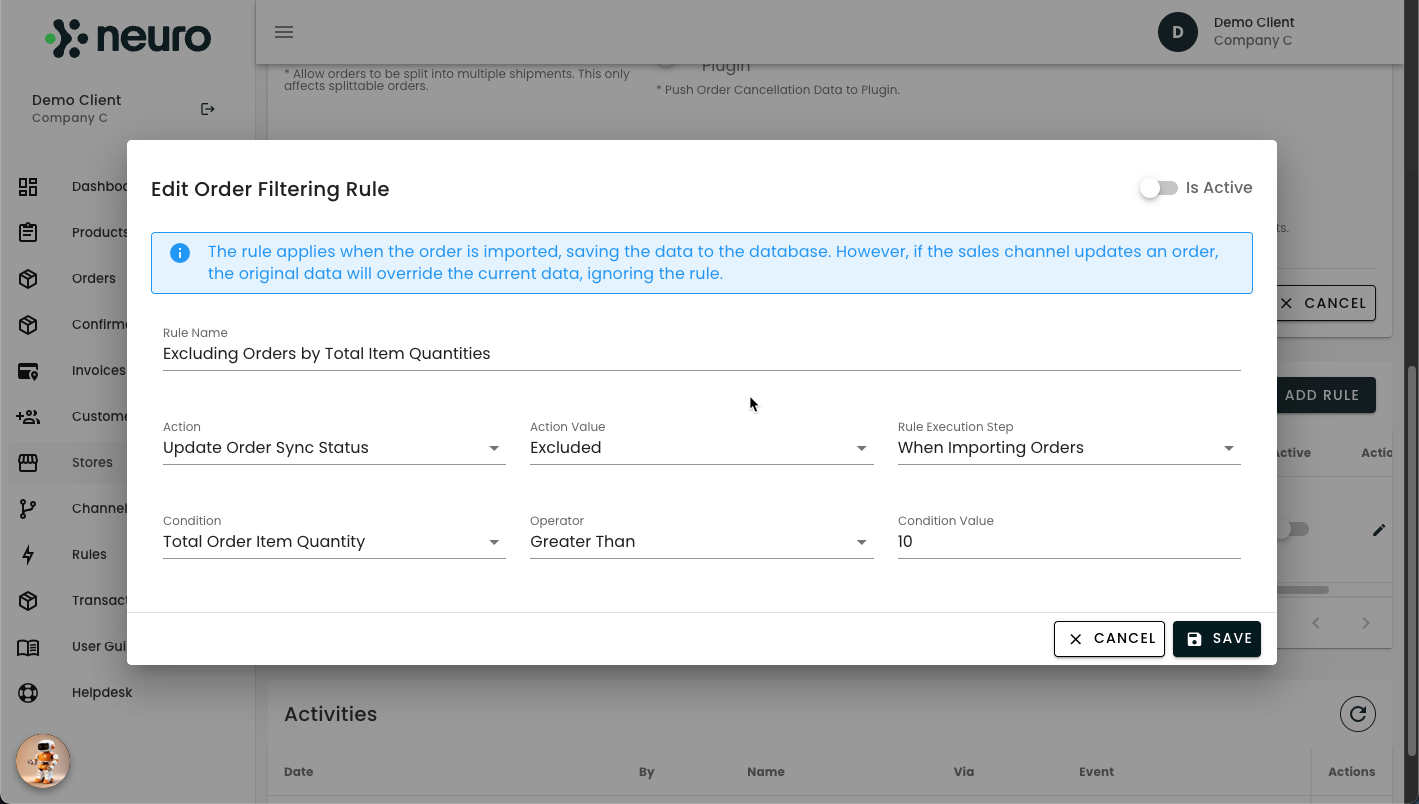
Click to maximise the image.

Tagging Orders by Order Item SKU
Rule Name: Provide a description outlining the purpose of this rule.
Condition: Line Item SKU
Operator: Exists
Condition Value: Enter the Kit, Bundle, and Group Item names to include them. Separate the SKUs with commas if you intend to add more than one.
Action: Add Tag
Action Value: Enter the keyword to be used as a tag for your orders in this field.
Multiple tags can be added to an order. If a Product SKU is part of more than one order tagging rule, those tags will be applied to all orders containing that product.

Tagging Orders by SKU
To tag orders based on SKU:
Rule Name: Describe the rule’s function.
Condition: Line Item SKU
Operator: Exists
Condition Value: List Kit, Bundle, and Group SKUs (comma-separated for multiple entries).
Action: Add Tag
Action Value: Enter the keyword to be used as a tag.
Note: Multiple tags can be applied to an order. If a product SKU matches multiple tagging rules, all relevant tags will be assigned.
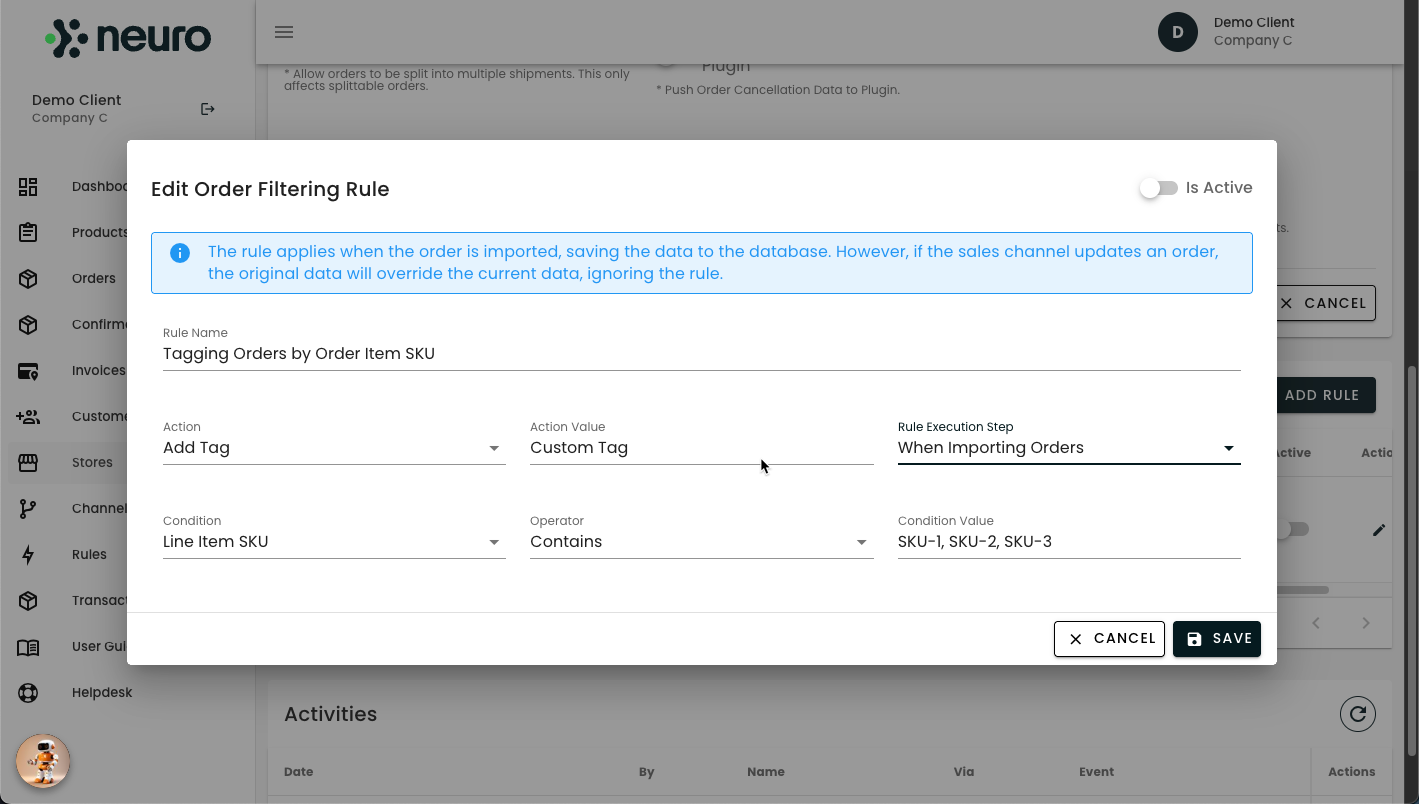
Click to maximise the image.

Tagging Orders by Channel
To tag all orders received from a specific channel:
Rule Name: Define the rule’s objective.
Condition: Channel Name
Operator: Equals
Condition Value: Select the channel from the dropdown.
Action: Add Tag
Action Value: Specify the tag keyword.
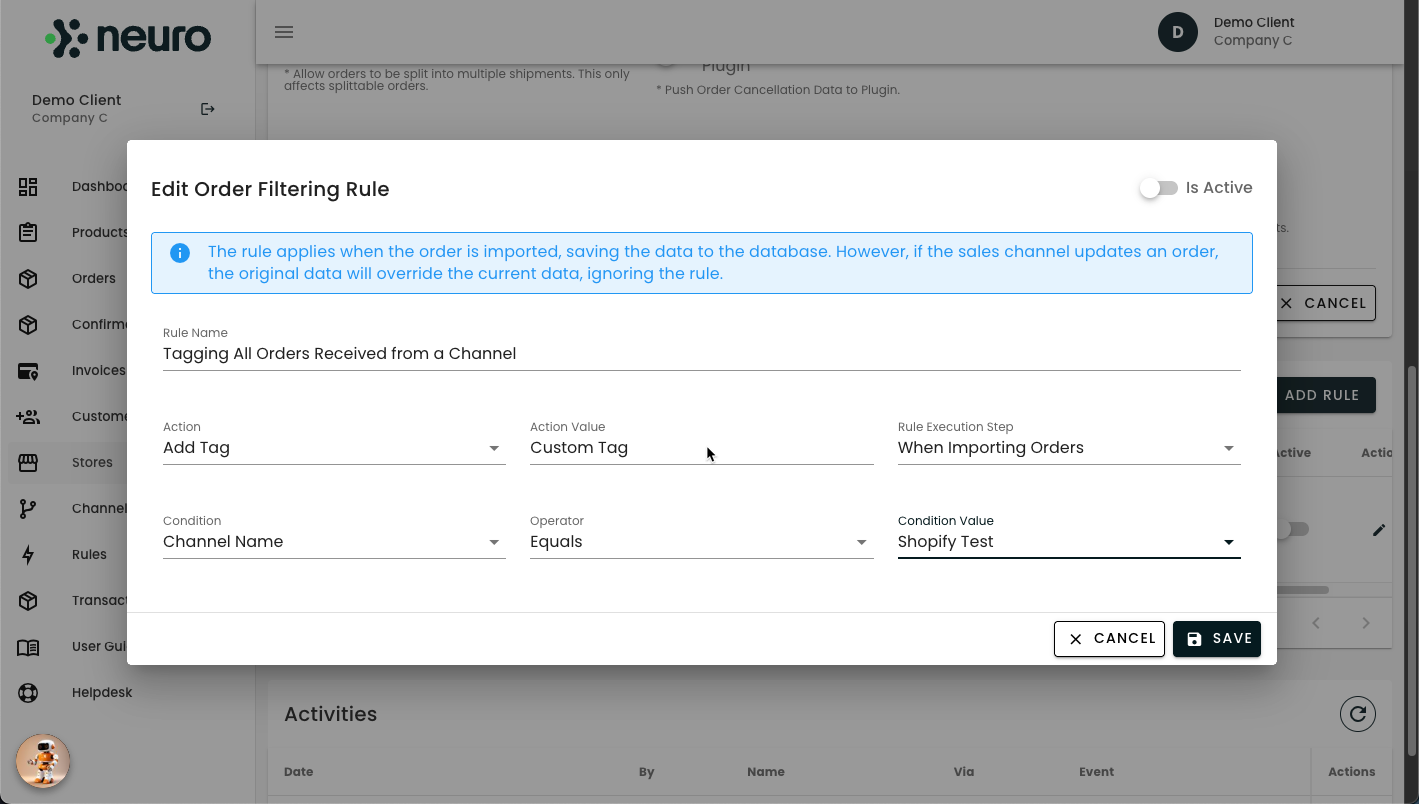
Click to maximise the image.

Understanding Order States
Plugin Sync Status
In Progress: Plugin rules are currently being applied.
Pending: The order is queued for plugin transmission; stock control applies.
Excluded: The order was not sent due to plugin rules or insufficient stock.
Failed: An error occurred during transmission.
Synced: The order was successfully transmitted to the plugin.
Order Sync Status
In Progress: The plugin is applying order rules.
Pending: The order awaits plugin transmission; stock control applies.
Excluded: The order was not sent due to rules or insufficient stock.
Failed: Transmission error encountered.
Synced: The order was successfully transmitted.
Updated: The order update was received and applied.

Resending Excluded Orders
To resend excluded orders:
Navigate to Orders from the left-side menu.
Select your store from the Store dropdown.
Click Sync Status to filter excluded orders.
Choose Excluded, then click Add to apply the filter.
In the Actions section, click Resend to resend the order.
Alternatively, open order details using the pen icon and click Resend Order
Click to maximise the image.

Checking Product Stock Quantities
To review product stock levels:
Navigate to Products from the left-side menu.
Select the store for which you wish to check stock.
View stock levels under Quantities/API Quantity.
Check the last synchronisation timestamp under Plugin Products > Updated At.
The Quantity field reflects the total from the plugin. Check the Product Stock Quantities
Click to maximise the image.

Sending Excluded Orders via Webhooks
To direct excluded orders to another system via webhooks:
Navigate to Store and click Edit Details under Actions.
Open the Webhooks tab and click + Add.
Fill in the webhook details:
Event: Select "orders.excluded".
Method: Choose an API method (GET, POST, PUT, DELETE, PATCH).
Interval (minutes): Set the frequency for webhook execution.
Number of Items To Be Sent: Define the batch size.
URL: Enter the destination URL.
Order Statuses: Choose statuses to send (e.g., Unpaid, Shipped, Refunded).
Include/Exclude Country Codes: Specify countries to include or exclude.
Include/Exclude SKUs: Define SKUs to include or omit.
Requires Authorisation: Enable and enter the auth header and key if required.
Enable Webhook: Activate the webhook upon creation.
+ Add New Header: Add custom header key-value pairs if needed.
Click Save to finalise the webhook setup.
Click to maximise the image.

Next Steps & Support
Need help? Explore more of our documentation, or contact support.