Managing Settings in Neuro
The Settings page enables you to manage key aspects of your account, including generating an API key, configuring IP whitelisting, and resetting your password. This guide outlines the steps required to perform these essential actions.
Last updated 10 months ago

Accessing the Settings Page
To navigate to the Settings page:
Click on your username in the upper-right corner of the interface.
From the dropdown menu, select "Settings".
Click to Maximise the Video

Managing API Keys
API keys provide secure access to your company’s data for integration with external applications.
To generate an API key:
Locate the API Key section.
Click the "+ Generate" button.
Your new API key will be displayed. Copy and store it securely, as it will not be shown again.
For details on implementing API keys in your applications, refer to our API documentation.


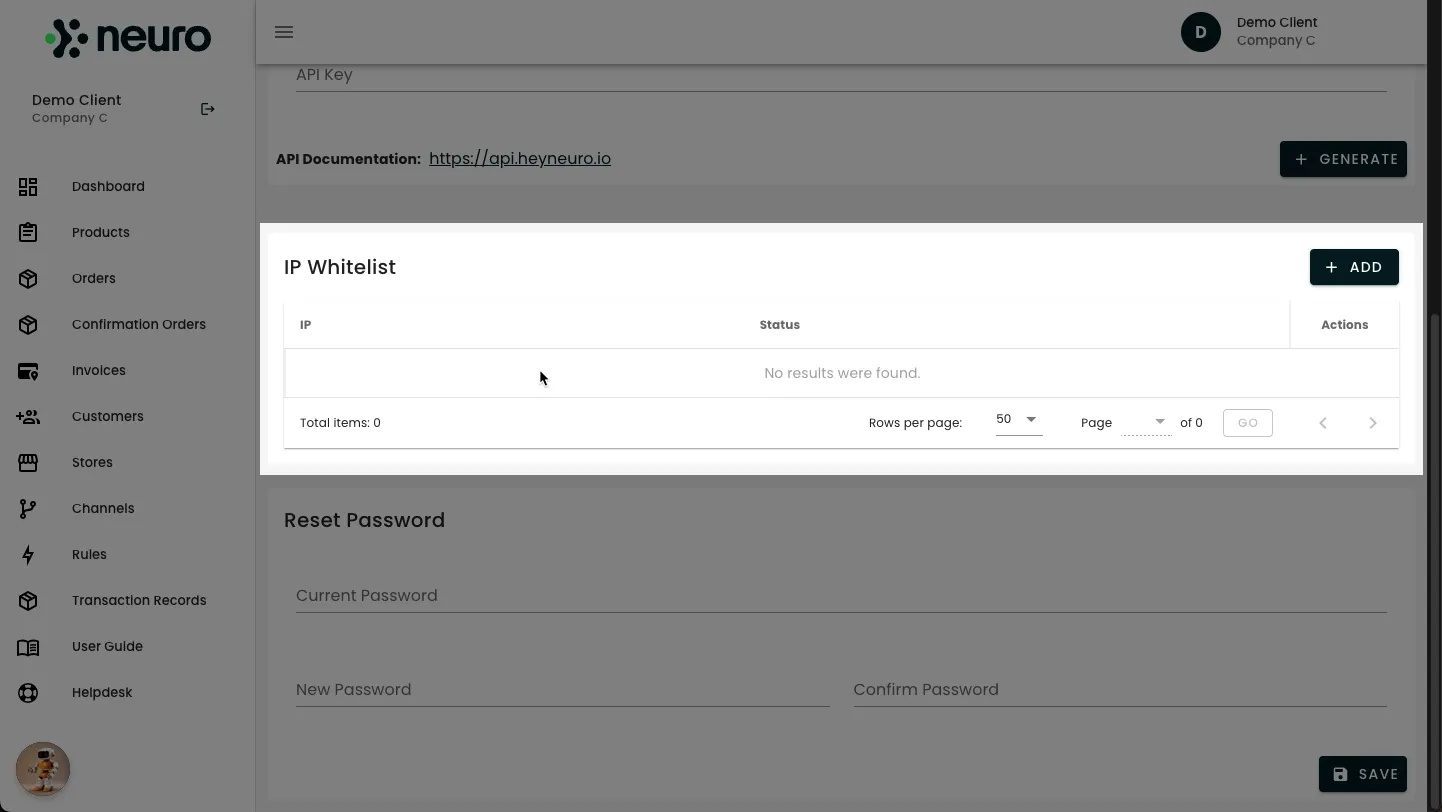
Configuring IP Whitelisting
IP whitelisting restricts account access to designated IP addresses, enhancing security.
To add an IP address to the whitelist:
Navigate to the IP Whitelist section.
Click the "+ Add" button.
Enter the IP address you wish to whitelist.
Choose an access level:
Allow: Grants access only from the specified IP.
Disable: Temporarily revokes access for the IP.
Block: Permanently denies access from the IP.
Click "Save" to confirm your changes.

Resetting Your Password
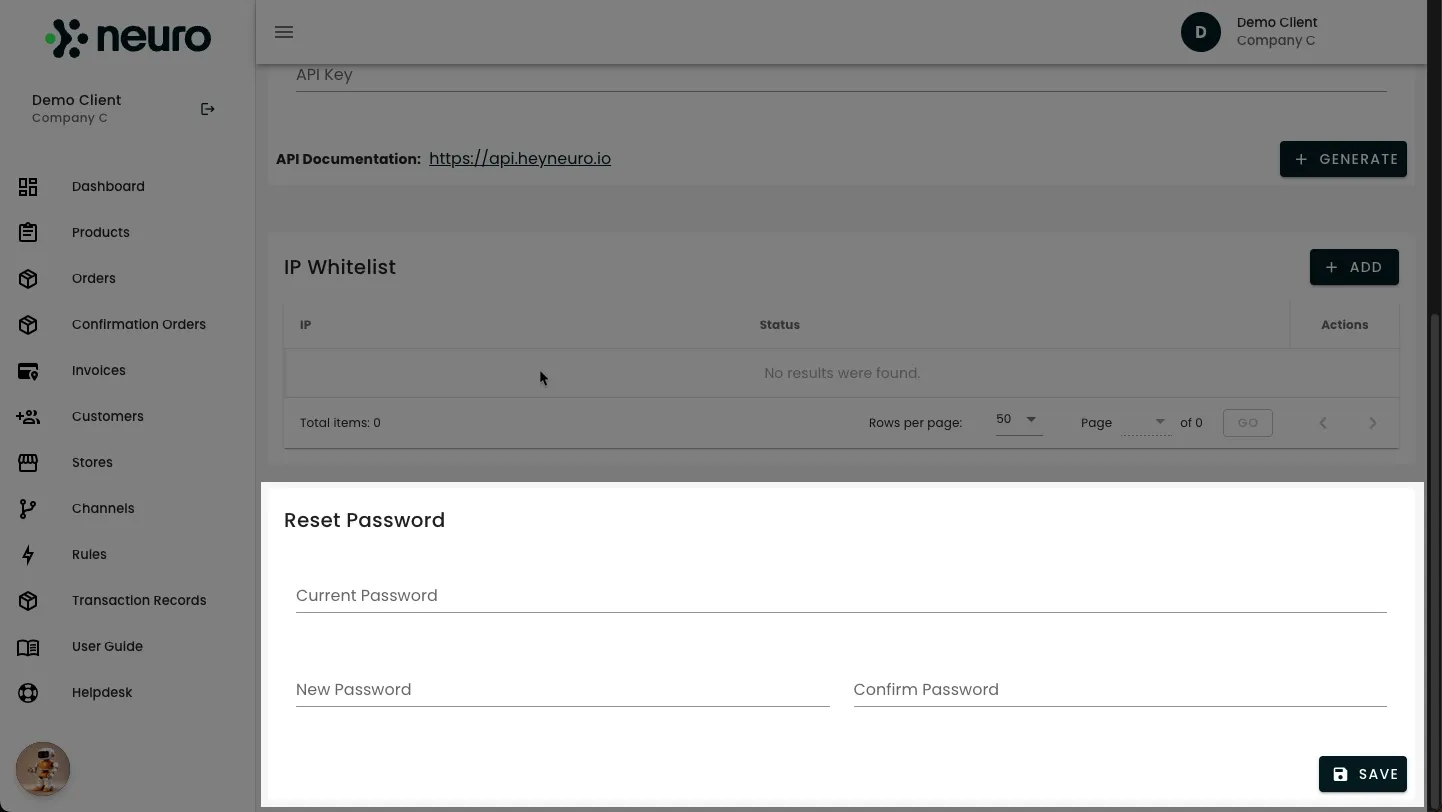
To update your password:
Locate the Reset Password section.
Enter your current password.
Input and confirm your new password.
Click "Save" to apply the changes.
By managing these settings effectively, you ensure your account remains secure and fully optimised for your operational needs.
Click to Maximise the Image.
Next Steps & Support
Need help? Explore more of our documentation, or contact support.